

API access requires a Premium plan. If you are on a lower plan, you will be prompted to upgrade when you try to create an API key.
Prerequisites
Before you start, you will need:- A Keyword Insights account on the Premium plan
- A KI API key (created from the API Keys section of your dashboard). Your key will start with
kwi_sk_ - Access to Claude with the Keyword Insights skill enabled
Where can I get the Skill.MD file?
Download the keyword-insights-SKILL.mdHow to install the skill?
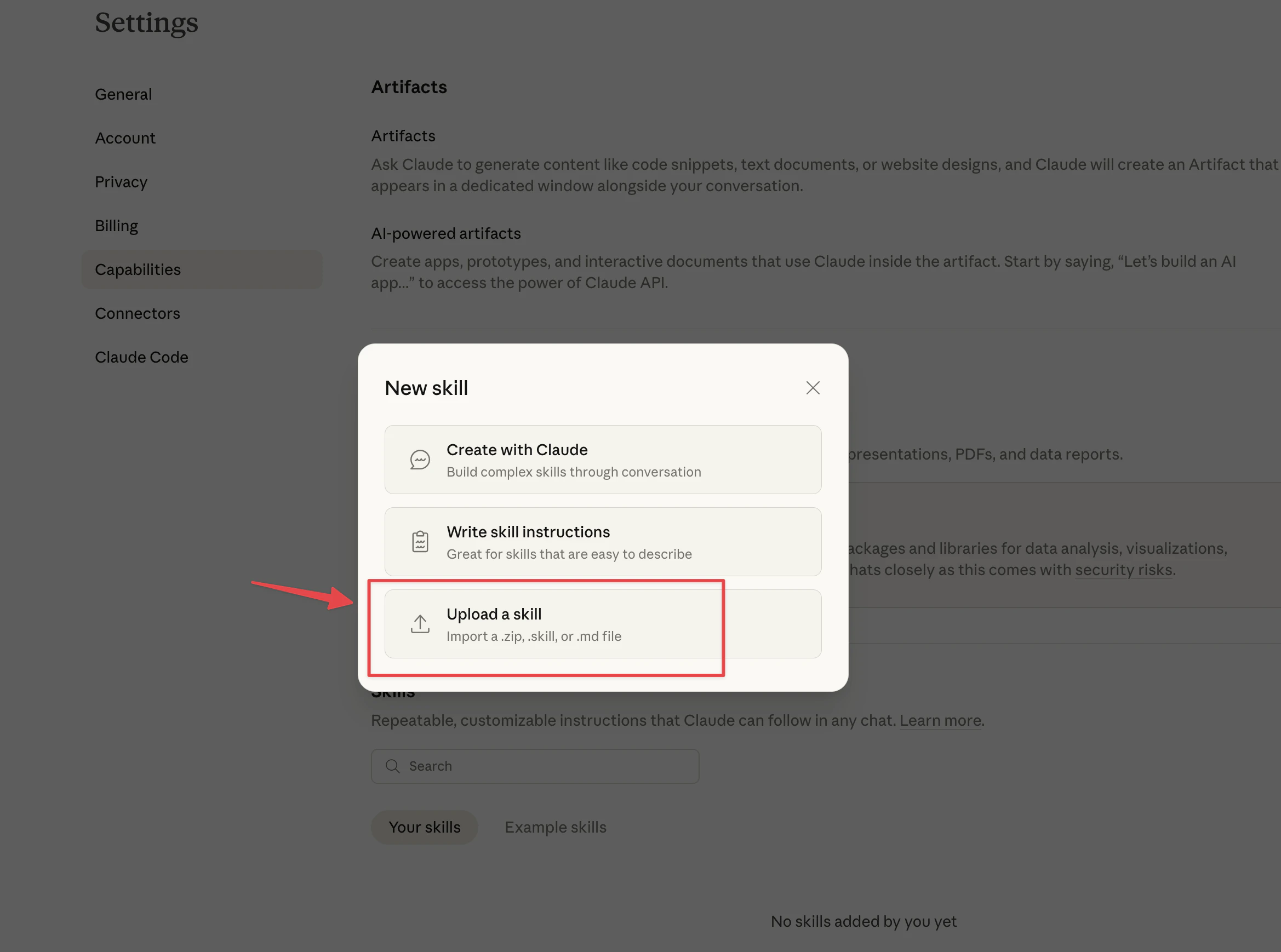
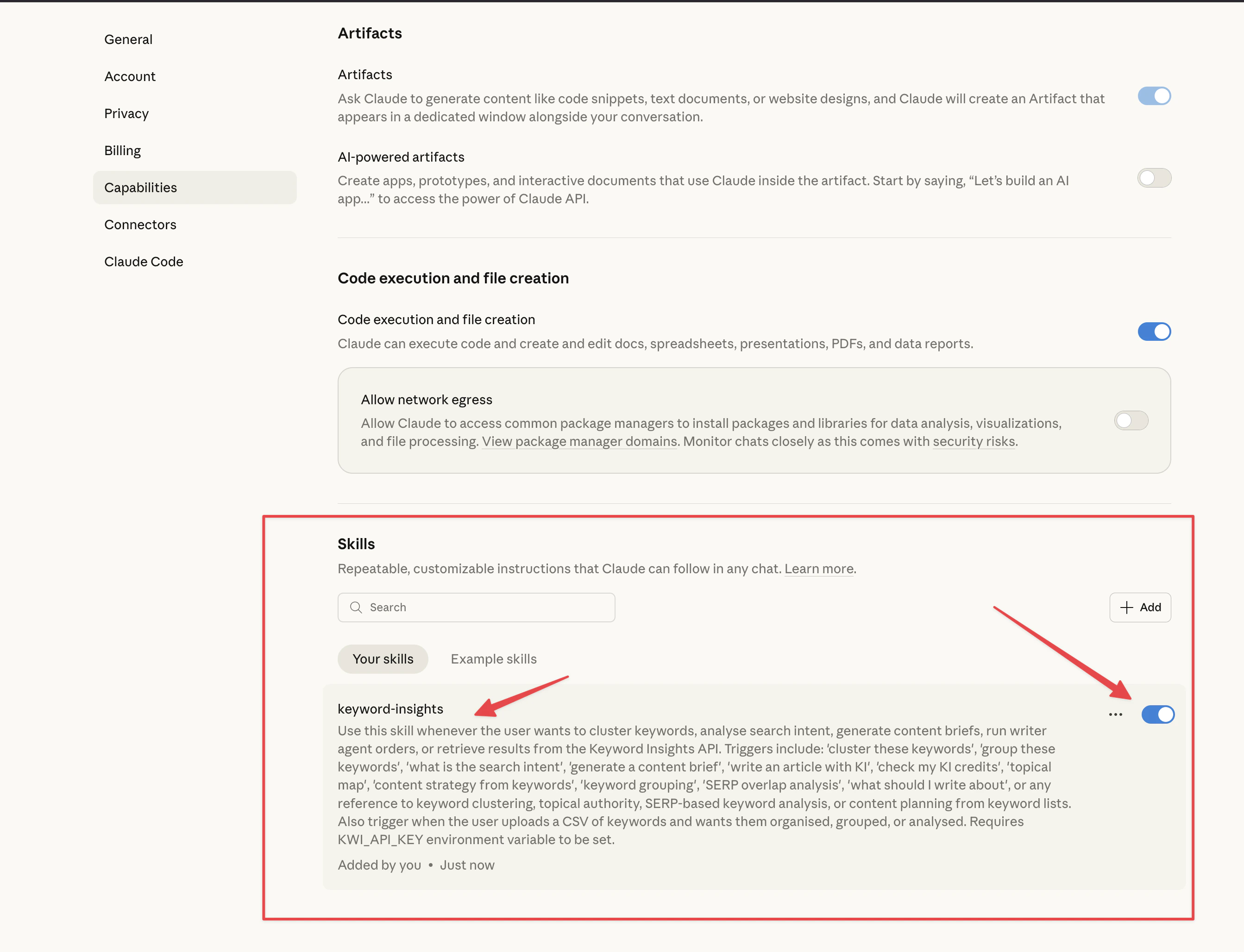
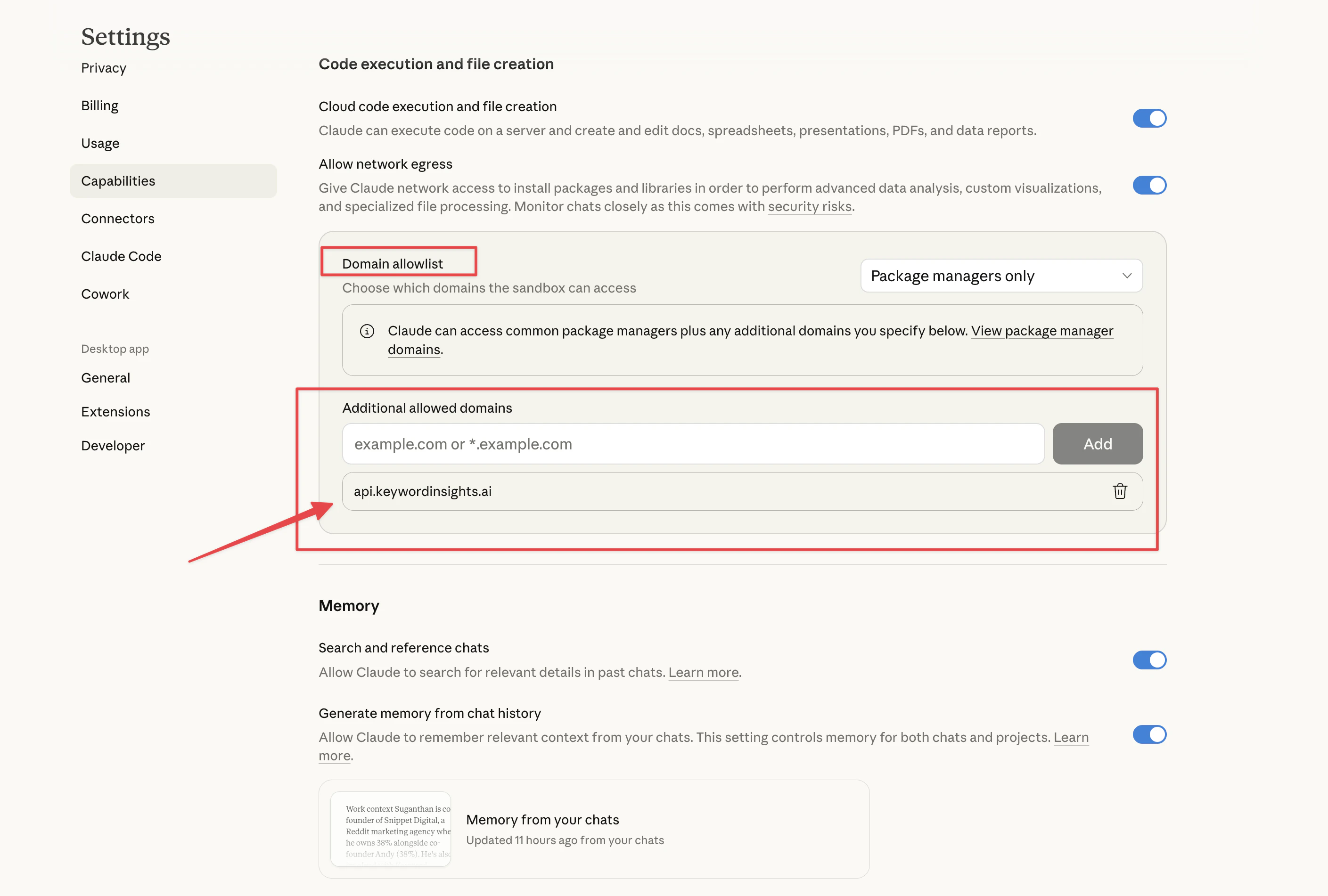
Once you download the keyword-insights-SKILL.md open Claude and go to **Settings -> Capabilities **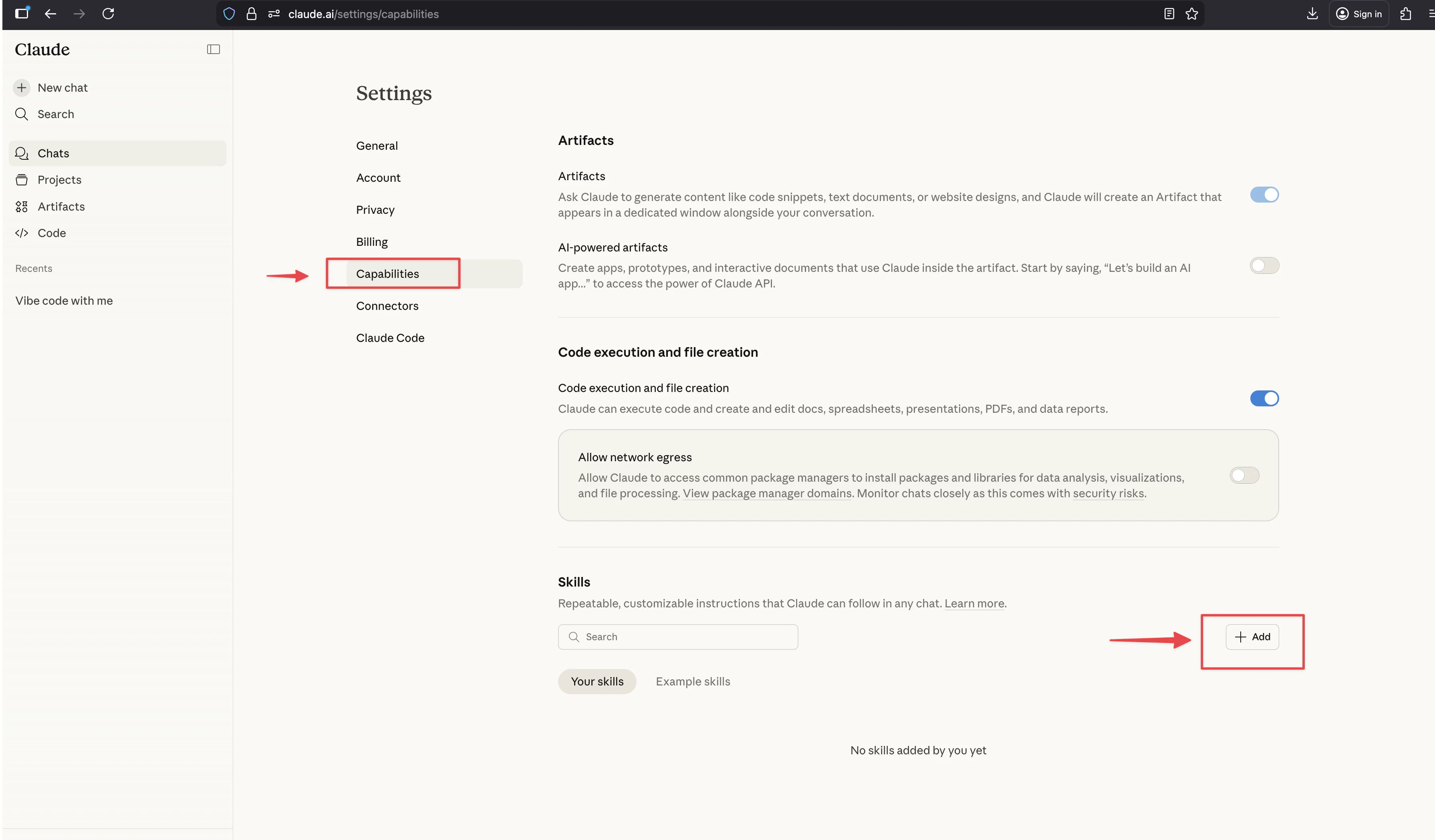
What You Can Ask Claude to Do?
Once connected, you can use plain English to trigger any of the following:Step 1: Prepare Your Keywords
You can give Claude keywords in two ways. Upload a CSV file Export your keyword list from Ahrefs, Semrush, Google Search Console, or any other tool and upload the file directly in the Claude chat. Claude will automatically detect the keyword and search volume columns, handle different file encodings (including Ahrefs UTF-16 exports), and prepare the data for submission. Paste keywords directly If you have a short list, paste the keywords into the chat one per line. Include search volumes if you have them. If you do not, Claude will default to zero and the clustering will still work, though results will not be sorted by volume.A minimum of 5 keywords is required per order.
Step 2: Tell Claude What You Want
Use natural language. Claude will interpret your request and confirm the settings it plans to use before submitting the order. Some examples:Step 3: Confirm the Settings
Before submitting, Claude will confirm the parameters it is using. The defaults are sensible for most use cases:
If you want to change any of these, just mention it before or during the conversation. For example: “Use the UK, set grouping accuracy to 6, and I only want intent, not full clustering.”
Step 4: Wait for the Order to Process
Keyword Insights processes orders asynchronously using live SERP data. Claude will poll for results automatically and update you when they are ready. Typical processing times:
You do not need to do anything while the order is processing.
Step 5: Work With Your Results
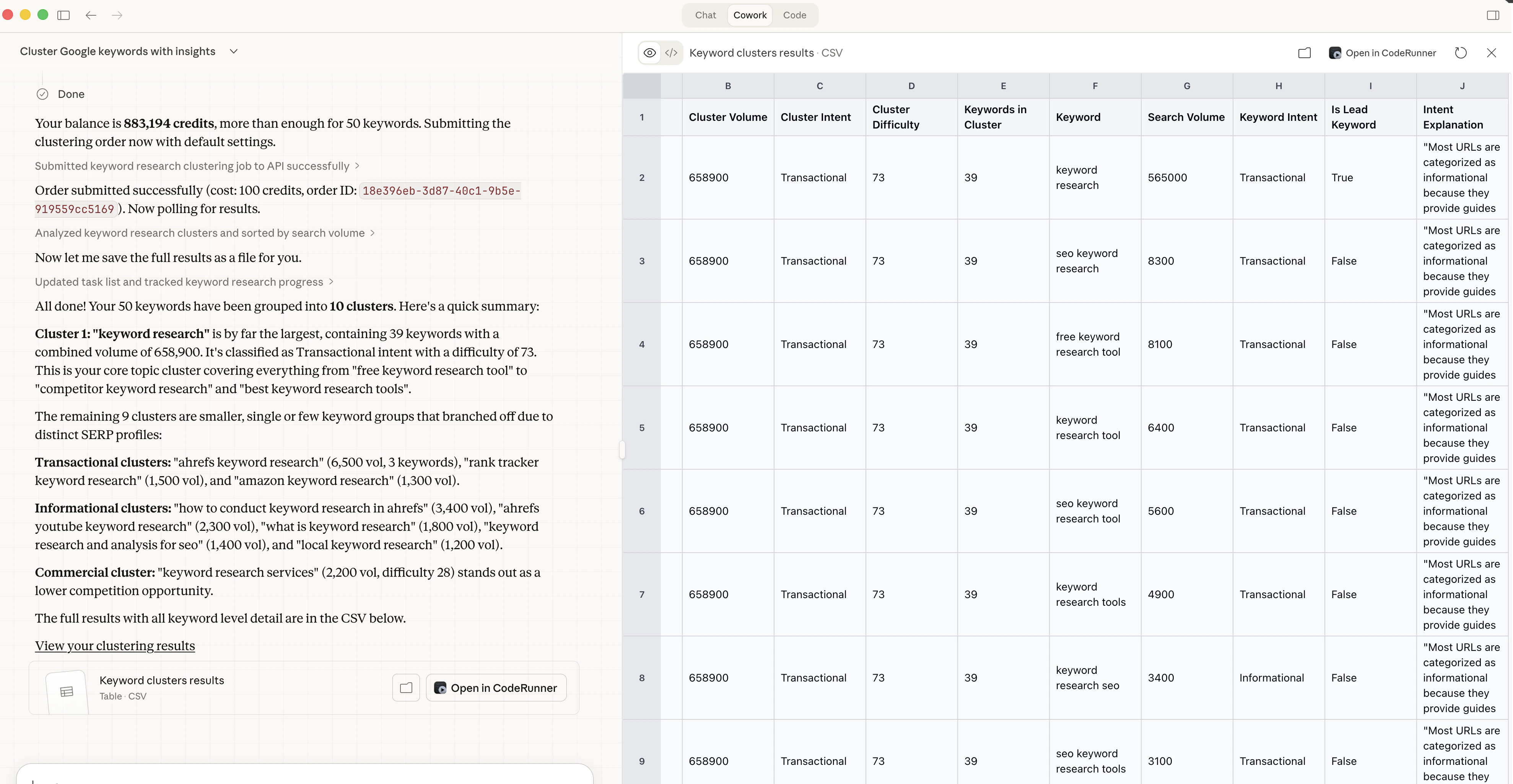
Once the order is complete, Claude will present a summary in the chat and offer to do more with the data. For a clustering order, the summary will include:- Total number of clusters created
- Top clusters by search volume
- Intent distribution across the full keyword set
Credit Costs
Supported Inputs
Claude can parse keyword exports from:- Ahrefs (tab-separated, UTF-16 encoded)
- Semrush (comma-separated, UTF-8)
- Google Search Console (via data export)
- Moz, Mangools, SE Ranking, and most other tools (standard CSV format)
- Plain text pasted directly into the chat
Keyword, Search Query, Term, Volume, Search Volume, and Avg. monthly searches.
Tips
- Always specify the target location if you are not targeting the US. Claude defaults to United States.
- Use a higher grouping accuracy (5 or 6) for tighter, more specific clusters. Use a lower setting (2 or 3) if you want broader topic groups.
- For large keyword lists, ask Claude to summarise the top clusters first before diving into the full data.
- You can chain actions in a single session: cluster a list, identify the top hubs, and request briefs for the most important ones without starting a new conversation.
- If you want results saved as a file, just ask. Claude can output a CSV or XLSX and provide a download link.
Troubleshooting
Claude says my API key is invalid Double-check that yourKWI_API_KEY environment variable is set correctly and that the key starts with kwi_sk_. Keys are created from the API Keys section of your KI dashboard.
The order is taking a long time
Large orders (500+ keywords) can take 10 minutes or more. Claude will continue polling and notify you when results arrive. Do not close the conversation. We don’t recommend running large orders using Claude and only use it for smaller orders. For large orders use our API or UI.
I got a credit error
Your balance was insufficient to complete the order. Claude will show your current balance and the cost of the operation. Top up from the Billing section of your KI dashboard and resubmit.
My CSV did not parse correctly
Check that your file has a header row and that the keyword column is labelled in a standard way. If Claude cannot detect the columns automatically, paste a few example rows into the chat and tell it which column is the keyword and which is the volume.